How to improve performance with the right accessories begins with understanding the task, not buying the most expensive gear. A well-designed accessory can improve comfort, control, accuracy, and efficiency during demanding work. However, the right choice depends on your equipment, habits, and performance goals.
I have found that small changes often produce noticeable results. A supportive keyboard wrist rest can reduce pressure during long typing sessions. A precise mouse can make detailed design work feel smoother. A properly adjusted monitor stand can keep the screen at eye level and reduce neck strain. For mobile work, a reliable charger, protective case, and compact stand can prevent interruptions. These details matter.
Fit comes first.
Compatibility is equally important. Check connection types, power requirements, dimensions, software support, and warranty coverage before purchasing. Professional testing should also include real working conditions. Use the accessory for several days, observe comfort and output, then compare the results. A short trial can reveal problems that product descriptions hide.
More equipment does not always mean better performance. Extra cables can clutter a desk. Heavy cases can reduce portability. Aggressive settings may create heat or fatigue. I have also learned that personal preference can distort judgment. A product may receive excellent reviews yet feel unsuitable in daily use. That is why reliable decisions should combine expert guidance, verified specifications, user experience, and practical testing.
The goal is simple: choose accessories that remove friction. When each item supports your workflow, performance becomes more consistent, comfortable, and sustainable.
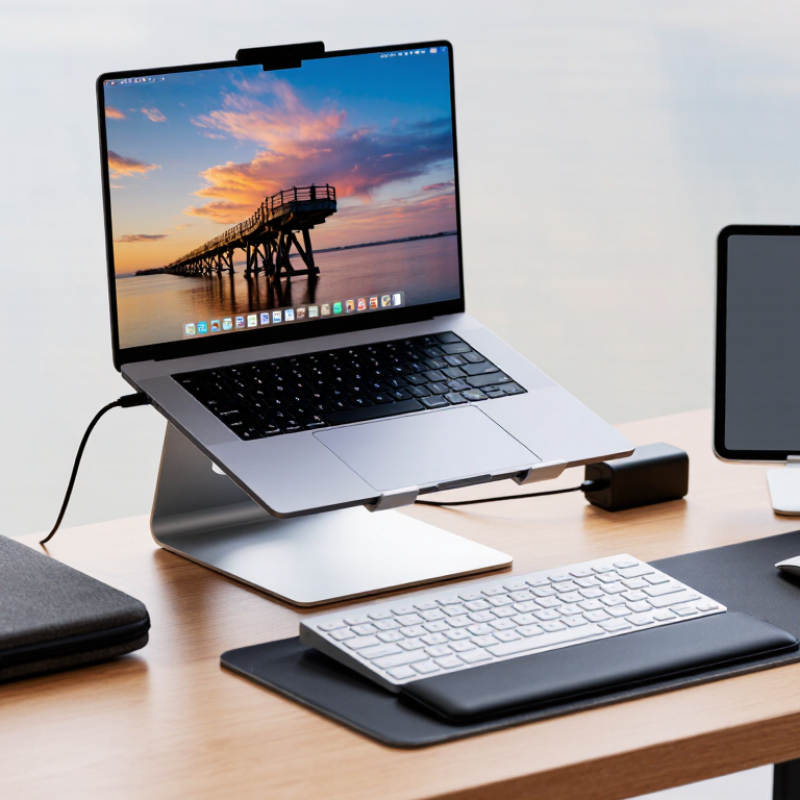
Define Performance Goals and Usage Conditions
How to Improve Performance With the Right Accessories?
Define Performance Goals and Usage Conditions
The right accessory begins with a clear performance goal. Decide whether you need greater speed, stability, comfort, or control. A commuter may value weather protection, while a competitive user may need lighter equipment. These goals require different choices.
Study your real usage conditions before buying anything. Note the surface, temperature, distance, storage space, and expected workload. For example, a frequently used item may need reinforced materials and easy maintenance. An accessory used outdoors should resist moisture and temperature changes. I once chose a lightweight option for convenience, but it became uncomfortable during longer sessions. That mistake taught me to test comfort under realistic conditions. Specifications matter, but daily handling matters more.
Tips:
Write down three measurable goals before shopping. Test fit and balance for at least ten minutes. Check whether the accessory remains practical in your normal environment. Leave room for adjustment. Your first choice may not be perfect. Review performance after one week, then change only what creates a clear improvement.
Match Accessories to the Tasks They Must Support
Performance improves when accessories fit the task, not when desks simply look complete.
In workstation audits, I examine movement before recommending equipment.
A narrow keyboard tray may force bent wrists during constant typing.
An adjustable tray keeps the keyboard near elbow height.
Small mismatches become painful after thousands of repetitions.
For screen-based work, monitor height and viewing distance matter.
The Occupational Safety and Health Administration recommends positioning screens to reduce awkward neck and eye movement.
A monitor arm helps shared desks adapt quickly.
A document holder keeps printed pages beside the screen, rather than flat on the desk.
For field or warehouse tasks, choose accessories that match grip, reach, lighting, and carrying demands.
A high-visibility task light may help inspection work, but it can create glare on glossy surfaces.
I have made that mistake.
The 2022 Global E-waste Monitor reported
62 million tonnes of electronic waste worldwide, with only
22.3% formally recycled.
Compatibility and repairability therefore deserve attention, not just convenience.
The accessory should work with existing equipment and survive its expected workload.
WHO and ILO estimated that long working hours contributed to 745,000 deaths in 2016.
Accessories cannot repair excessive workloads.
That warning still matters.
Test one setup for a full shift, record discomfort and delays, then adjust it.
Do not trust appearance alone.
Check Compatibility, Quality, and Ergonomic Fit
The right accessory can improve performance, but only when it fits the device and the user. Check connector type, voltage requirements, operating-system support, and available workspace before buying. A beautifully designed keyboard is useless if its layout slows daily work. A monitor stand can also create problems when it lifts the screen too high.
Ergonomic fit deserves equal attention. The World Health Organization reports that musculoskeletal conditions affect about 1.71 billion people worldwide. A poorly positioned mouse, rigid wrist rest, or unstable footrest may increase strain during long sessions. Keep the screen near eye level, let elbows rest close to the body, and choose controls that work without excessive pressure. In practice, small adjustments matter. I still change my chair and keyboard angle during busy weeks. That is a useful reminder: comfort is not always permanent.
Tips: Test the accessory for ten minutes before purchase. Check whether cables bend sharply behind the desk. Look for safety certifications, durable materials, and clear warranty terms. Replace accessories that wobble, heat up, or disconnect unexpectedly. The U.S. National Institute for Occupational Safety and Health emphasizes neutral postures and task variation in ergonomic work design. However, no accessory fixes every problem. Breaks, movement, and honest self-observation remain necessary. Sometimes the “best” setup still needs another adjustment.
Configure and Test Accessories for Measurable Improvements
Improving performance often starts with the accessories surrounding your main device. A better setup is not automatically a faster one. Configuration and testing matter more than appearance. Begin by recording a baseline. Measure response time, temperature, noise, power use, or task completion speed. Use the same file, application, and workload each time.
My first test was flawed. I changed the cable, cooling pad, and storage settings together. The result looked impressive, but I could not identify the real cause. A controlled test is more reliable. Change one accessory at a time. Connect it securely, install the required software, and check compatibility before measuring. Keep room temperature and battery level as consistent as possible. Small details can distort results.
Use practical tools for evidence. A stopwatch can track export time. A temperature monitor can reveal whether cooling changes sustained performance. For sound, record readings from the same desk position. Repeat each test three times. Record every result, including failures. One accessory may improve peak speed but reduce comfort or portability. That trade-off deserves attention. My own measurements sometimes contradicted expectations, which showed the limits of quick testing. Review the numbers after several work sessions, not only after installation. A useful improvement should remain visible during ordinary use.
Maintain and Upgrade the Setup Over Time
A high-performing setup does not stay efficient by accident. Dust, worn cables, loose connections, and outdated accessories slowly reduce comfort and reliability. In my experience, a five-minute inspection each month prevents many frustrating problems. Check cable insulation, clean vents, tighten adjustable stands, and confirm that every connection fits securely. Small faults become expensive when ignored.
Keep a simple maintenance record. Note replacement dates, unusual heat, connection drops, and changes in performance. This record reveals patterns that memory often misses. Replace damaged cables immediately, even if they still work. Back up important settings before changing storage, memory, or cooling accessories. Compatibility matters more than appearance. Check measurements, power requirements, supported standards, and available ports before buying anything.
Upgrade only when the current setup creates a clear limitation. I once added accessories too quickly and created clutter, blocked airflow, and slower access to essential controls. That was a useful mistake. A compact stand may improve posture, while a reliable hub can reduce repeated unplugging. A cooling accessory should not hide blocked vents or produce distracting noise. Test one change at a time, then compare temperature, stability, and daily comfort. Review the setup every few months, because work habits change and yesterday’s ideal arrangement may feel awkward today.
Conclusion
How to improve performance with the right accessories begins by identifying clear performance goals and understanding the conditions in which the equipment will be used. Whether the priority is speed, precision, comfort, efficiency, or reliability, each accessory should serve a specific purpose. Matching accessories to the tasks they must support helps create a practical setup instead of adding unnecessary components. Compatibility is equally important, including fit, connection standards, durability, and ergonomic design, so every part works safely and comfortably with the main equipment.
After selecting suitable accessories, configure and test them under realistic conditions to measure whether they deliver meaningful improvements. Small adjustments to positioning, settings, or workload distribution can significantly affect results. Regular maintenance, inspections, and cleaning help preserve performance over time, while periodic upgrades allow the setup to adapt to changing needs. By reviewing performance regularly and replacing outdated or unsuitable components, users can build a more efficient, comfortable, and dependable system.

 Insider Sports